

Rolling dice
Set up the roll
Section titled “Set up the roll”Select Dice on the main menu (it shows your current setup, such as Dice: 3d20). The setup screen has two columns side by side: how many dice on the left, which die on the right. The column you are changing is highlighted and named at the top, and the setup is spelled out underneath, for example 3 × d6.
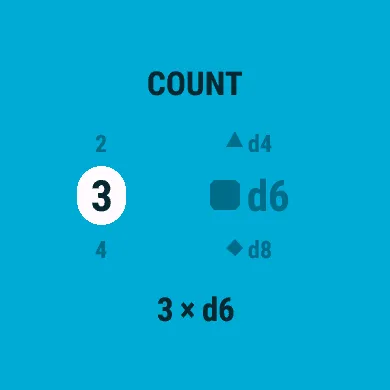
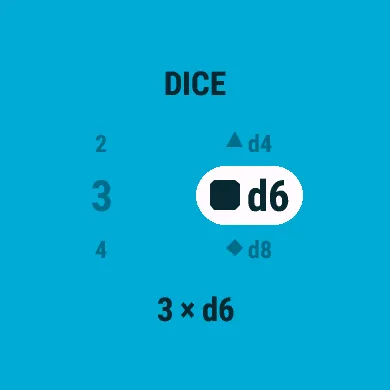
- UP / DOWN change the highlighted column: the count from 1 to 12, the die from d4, d6, d8, d10, d12 and d20 to d100.
- START on the count moves to the die. START on the die rolls straight away.
- BACK keeps the setup and returns to the menu. There is no confirm step.
- On a touchscreen, tap a column to highlight it, and tap the highlighted one to act as START.
Your setup is saved, so it is ready the next time you open DiceKeeper.
Select Roll on the main menu. The dice are thrown the moment the result screen opens: they arc in from the edge of the screen, spin, slow down and land with a small bounce.
On the result screen every button except BACK rolls again, and so does a tap on a touchscreen, so a repeat roll is one press wherever your thumb already is. BACK returns to the menu.
Read the result
Section titled “Read the result”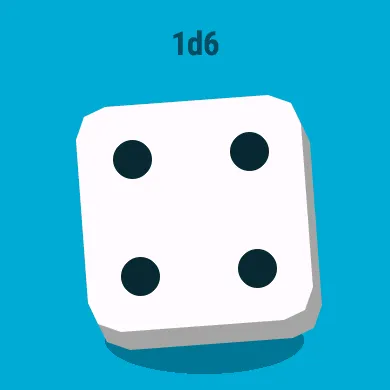
- One die fills the screen and shows its own value. A natural maximum (a 20 on a d20) gets a burst of rays; a natural 1 turns the face red.
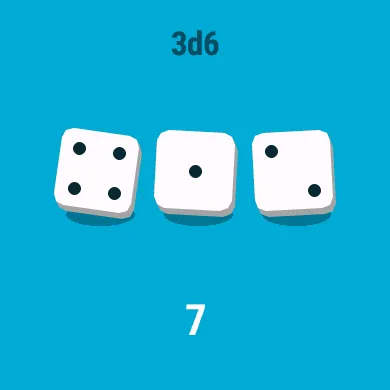
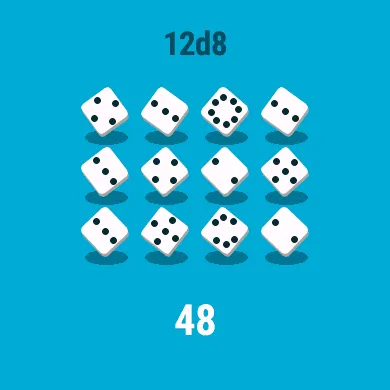
- Several dice settle into balanced rows (five dice sit as three over two), with the total underneath as soon as the last one lands.
- Each die is drawn in its own shape: a triangle for the d4, a square for the d6, a diamond for the d8, a kite for the d10, a pentagon for the d12, a hexagon for the d20 and a faceted ball for the d100. The d4, d6 and d8 show pips; from the d10 up the face shows a number.
When the dice land, the watch vibrates and plays a tone, so you can roll without looking. Both can be turned off in Settings.